Tildagon End User Manual
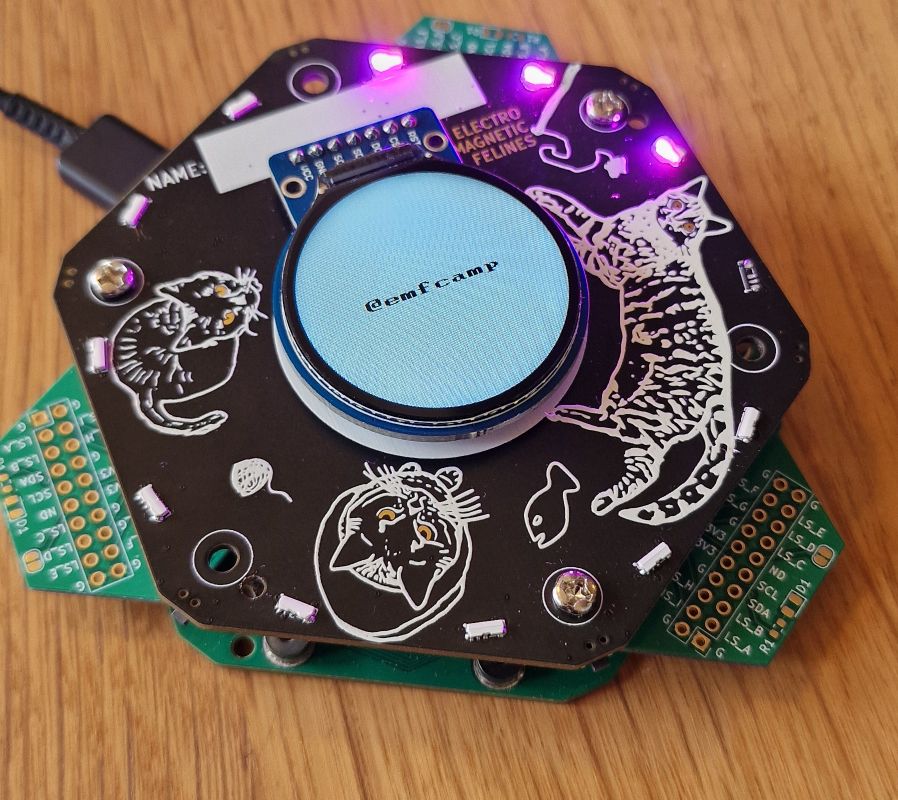
The Tildagon is a badge that you can wear around your neck. It has a round screen, six buttons, and lots of colourful LEDs. It has a USB-C connector, WiFi, and a battery. It can run MicroPython, and has six hexpansion connectors.
The badge will automatically connect to camp wifi, and you can use the app store to install apps.
The hexpansions that the badge supports allow you to extend the functionality of the badge with hardware made by yourself or other attendees.
Hexpansions
Slide a hexpansion into a slot on the edge of the badge until the connector tab is fully connected. The badge should detect it automatically and light up the port.
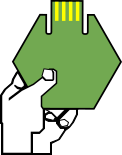
Hexpansions must be 1mm thick to fit properly. If yours is not detected, see Detecting hexpansions.
Operate your badge
Power on
To power on your badge, press and hold the bottom button designated bat (the designation is on the back of the badge) for 2 seconds.
Navigate the menu
Use the buttons A (UP) and D (DOWN) to move up and down in the menu. To select a menu item, press C (CONFIRM). To go back to a previous menu or exit an app, press F (CANCEL).
Note that badge apps may use buttons differently.
Power off
To power off the badge, select the menu item Power off.
If your screen is broken, follow the steps in Turn off badge with broken screen.
Buttons
Front of the badge
- A (
UP): In the menu, this button navigates up. In apps the functionality may vary. - B (
RIGHT): When entering text in a dialogue, this button allows you to add another letter. In apps the functionality may vary. - C (
CONFIRM): This generally confirm the selection. In a dialogue, this button means yes. In apps the functionality may vary. - D (
DOWN): In the menu, this button navigates down. In apps the functionality may vary. - E (
LEFT): When entering text in a dialogue, this button allows you to move left. In apps the functionality may vary. - F (
CANCEL): This generally cancels the selection. In a dialogue, this button means no. In apps the functionality may vary.
Back of the board
The boop, reboop, and bat buttons are on the base board (the back half of the badge), on the left-hand side. Their names are printed on the board next to each button.
- reboop: Press and hold the reboop button to perform a soft (re)boot.
- boop: Press and hold the boop button while connecting to power to load the bootloader (the badge needs to be powered off before connecting to power).
- bat: Press the bat button to power on your badge.
Troubleshooting
For common issues, see Common problems.